Do you find YouTube brand awareness & reach campaigns confusing, with so many creative lengths, ad types, buy types, and worry about how and when to use them?
You are not alone; it’s painful for most of us.
On top of that…
Google released several updates to the YouTube brand awareness & reach campaign on DV360. After a while, it became quite challenging to keep up with all these updates.
These updates were a major announcement that impacts our daily campaign execution on DV360.
New ad formats on DV360 youtube brand awareness & reach campaigns were introduced, including feed and Shorts targeting.
Additionally, introduced a new length for non-skippable campaigns; some are in beta, and some are in use.
These YouTube brand awareness & reach campaigns are the most popular ad-buying inventory for advertisers on DV360. It’s important to familiarize yourself with these updates and keep their importance in mind.
I have created a cheat sheet to familiarize myself with the YouTube brand awareness & reach campaign, which includes the latest updates. Alongside this, I would also share steps to set up the DV360 YouTube Reach Campaign as a bonus, since it’s the most commonly used campaign type.
Let’s Learn about youTube brand awareness & reach campaign details here:
| Line Item Sub | Ad Types/ Format | Recommended Creative Length | Max Creative Length | Buy Type |
| Non Skippable Reach | Non Skip Ads | 7-15 seconds | 15 | CPM |
| Non Skippable Reach | Non Skip Ads | 16-30 seconds | 30 | CPM |
| Non Skippable Reach | Bumper & Non Skip Ads | 5-15 seconds | 15 | CPM |
| Efficient Reach | Bumper, Skippable, Shorts & Infeed | 5 seconds or longer | Not recommended above 3 minutes | CPM |
| Target Frequency | Bumper Skippable & Non Skippable | 5 seconds or longer | Not recommended above 3 minutes for skip ads | CPM |
| Ad Sequence | Bumper Skippable & Non Skippable | 5 seconds or longer | Not recommended above 3 minutes for skip ads | CPM |
When to use Youtube reach campaign and ideal KPI’s
| ine Item Sub | Ideal KPI’s | When To Use |
| Non Skippable Reach | CPM Or VCR | Looking to convey your msg with longer videos. DV360 would accept even less than 6 seconds of video, but the recommended length is above 7 seconds |
| Non Skippable Reach | CPM Or VCR | Best for CTV ads. Creative length shorter than 16 seconds won’t be accepted |
| Non Skippable Reach | CPM Or VCR | If you want to test Bumper with non skip. The ad type/format would be automatically determined based on the length of the video creative |
| Efficient Reach | CPM | Looking for efficient impressions and reaching more unique users at a lower CPM. The ad type/format would be automatically determined based on the length of the video creative |
| Target Frequency | CPM Or VCR | As the name suggests, if you are not meeting the required ad Frequency from other ads, this type of ad would help meet your desired ad frequency. It will aim to reach the target ad frequency, but this isn’t guaranteed. Note. You can create either a bumper and skip ad group or a non-skip ad group, but not both at the same time. |
| Ad Sequence | CPM Or VCR | Best to share brand story, build brand interest, or reinforce a message over time |
Now that you are familiar with YouTube TrueView for a reach Campaign? Let’s learn how to set up.
1. To set up a DV360 YouTube brand awareness & reach campaigns in the most fun way. Let’s start!
2. Use an existing IO(insertion order) or create a new one. You can also duplicate existing IO to save some time.
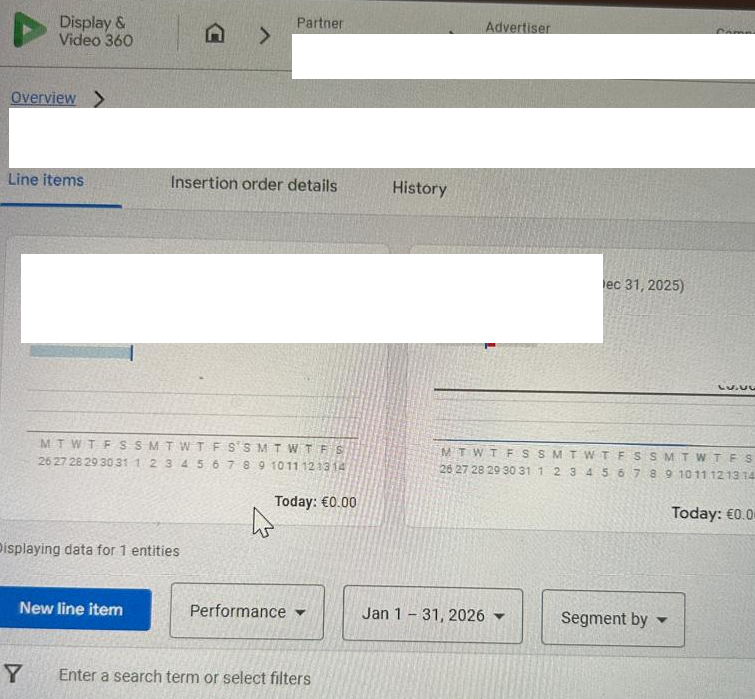
3. Assuming you’ve created a new IO. Once under IO, click create new line item, then select YouTube.
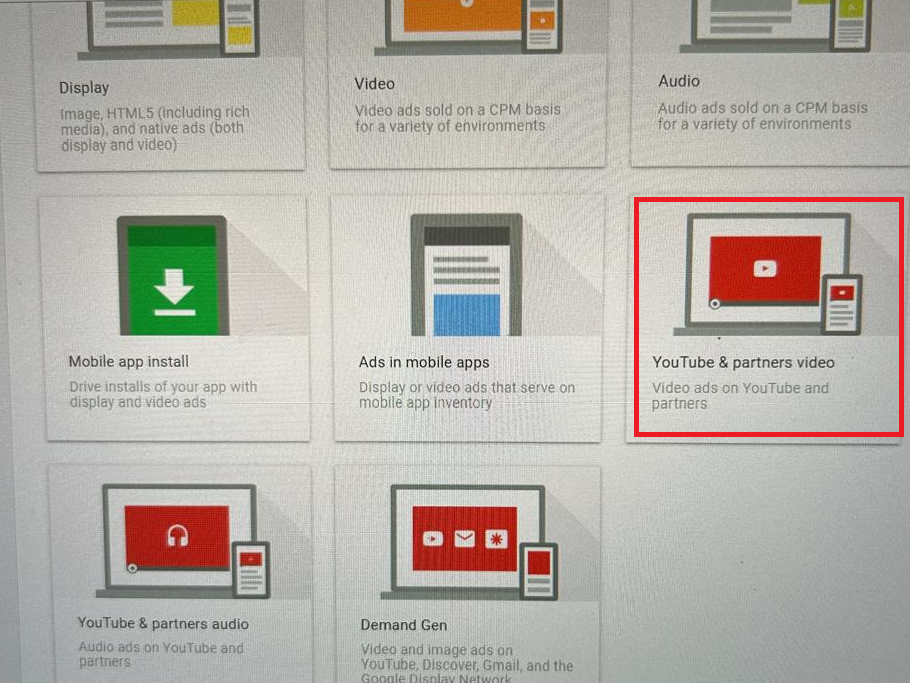
4. Choose ‘YouTube & partners video’.
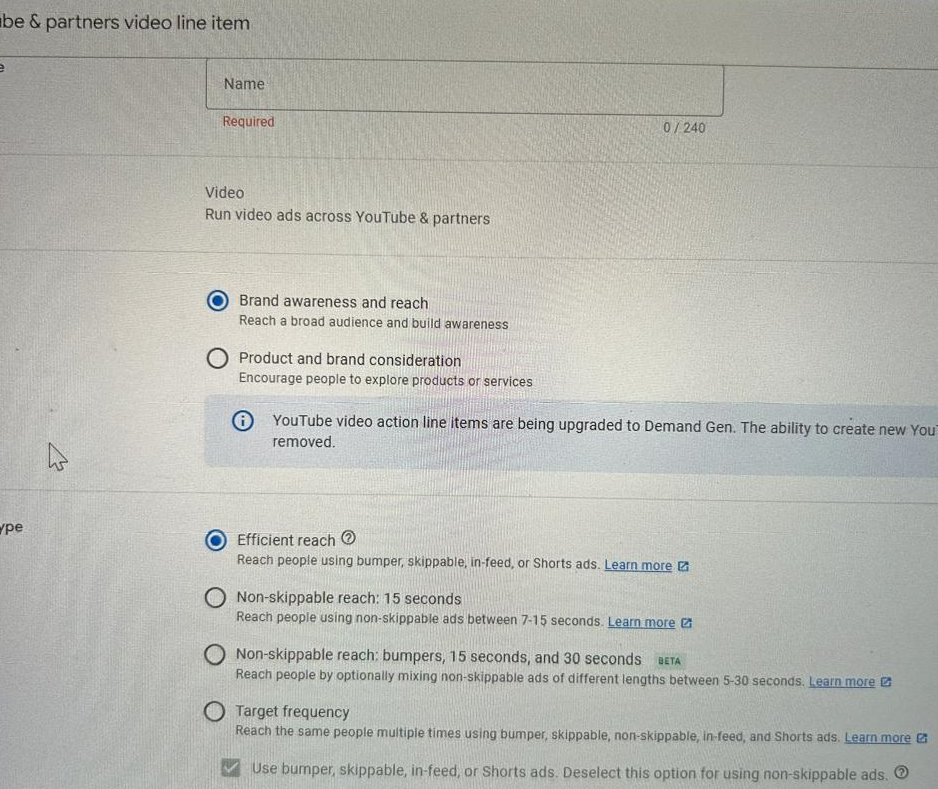
- Now, fill in a few quick details:
- Give your line item a catchy name—something you’ll actually remember. (Example: ‘Epic Cat Videos Summer 2026’)
- Set your goal to ‘Brand awareness and reach‘—that’s ad-speak for ‘let’s get famous.’
- Select ‘Efficient reach‘ as the type.
5. Hit Next. If you want, you can tweak which ad types you want to use. Such as picking shorts, or in feed or skippable.
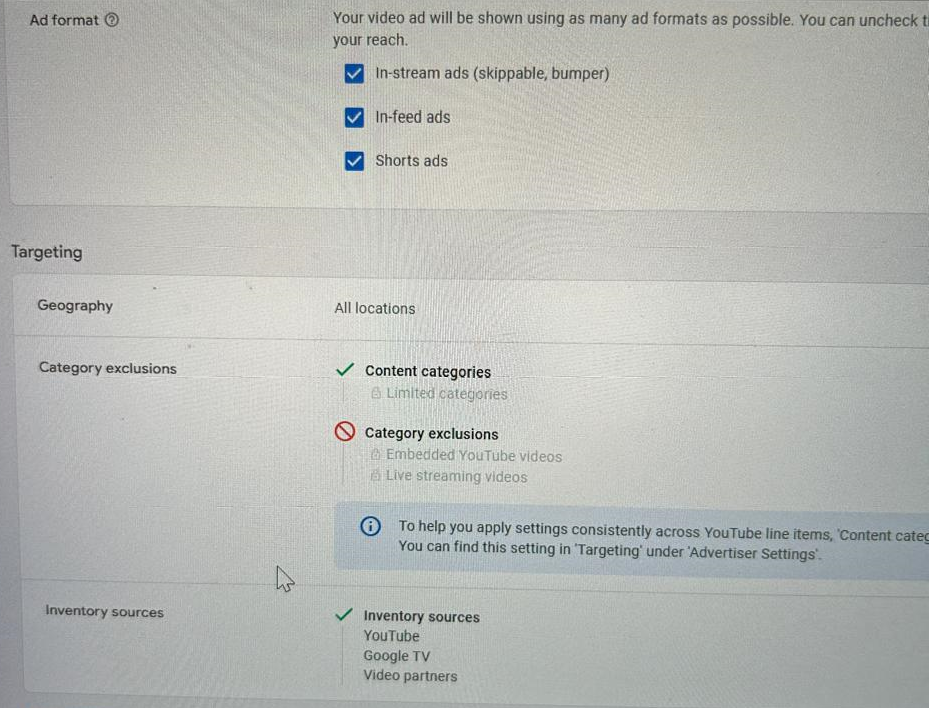
Now, let’s set up your ad details!
6. Targeting: Click ‘Add targeting‘ to pick your perfect audience. (Example: Only dog lovers in New York!) You can get even more precise later.
- Select the device targeting
7. Set things like dates, budget, and extras. Very easy on-screen instructions.
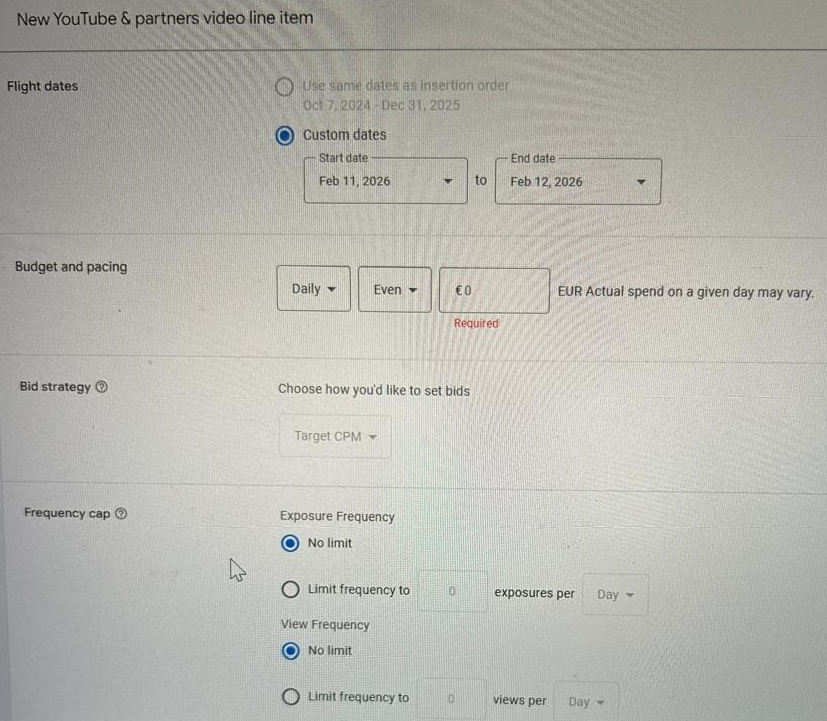
- Pick your flight date(start and end date). Want it to run all summer? Or just for one wild weekend? Your call!
- Set your budget (how much you want to spend), and choose if it should spend daily or all at once. Heads up: you can’t switch this later, but you can change the amount.
- (Optional) Set a frequency cap—this is ad-speak for ‘don’t annoy people by showing the same ad 900 times.’
- (Optional) Want to show off your products? Add a product feed here.
Create a DV360 YouTube ad group and ads!
1. Click ‘Create new ad group‘ to start—think of this like naming your cricket team.
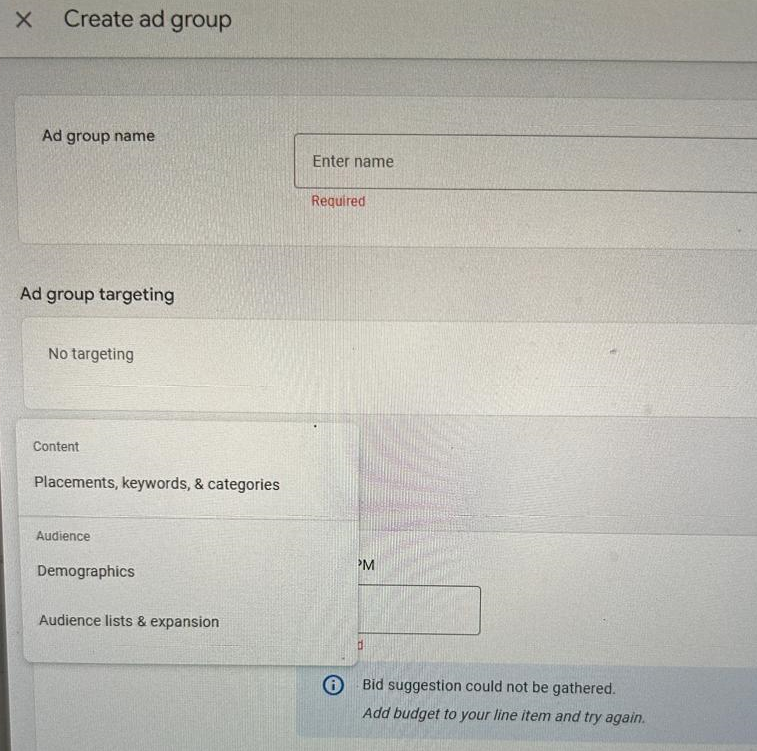
2. Give your ad group a memorable name. (Example: ‘Late Night Snackers’)
3. Click ‘Add targeting‘ if you want to get super specific about who sees your ads. (Example: Only people who love pizza and live in Chicago!)
4. Set your target CPM bid—basically, how much you want to pay for every 1,000 times your ad pops up. (Example: $2.50 per thousand views)
5. Click ‘Create new ad‘ to choose the YouTube video you want to advertise.
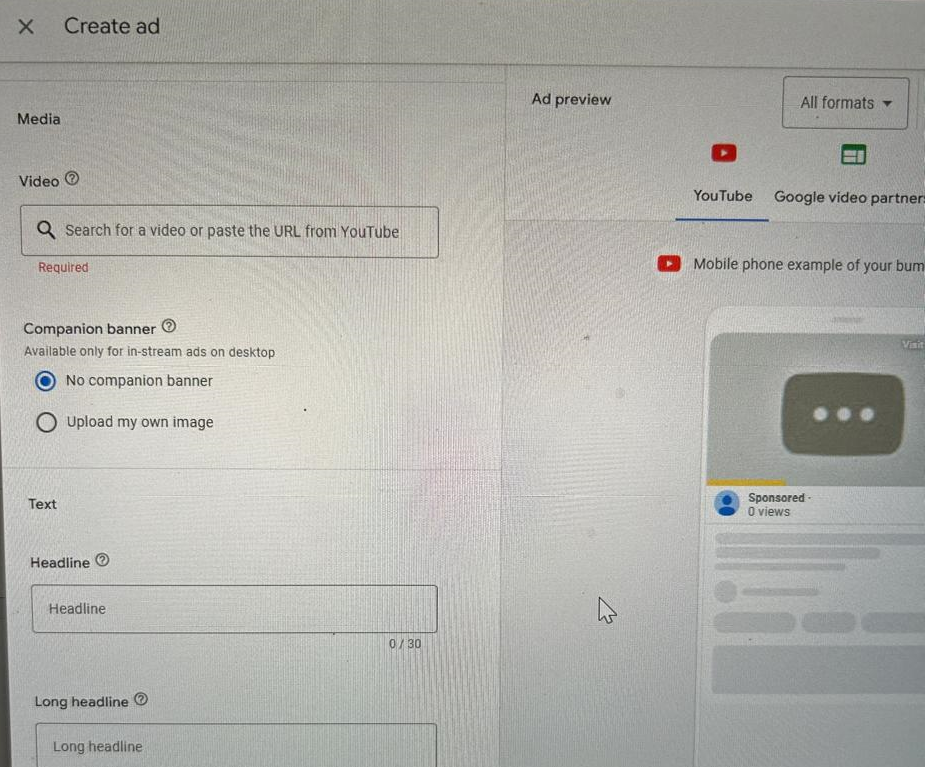
- Name your ad something cool. Use the tag sheet shared from the CM360 team to name it, or feel free to add any name you see fit.
- Search for the YouTube video you want, or just paste the link. The system will figure out the format automatically—no math required.
- (Optional) In the ‘Preview’ area, you can see exactly what your ad looks like—try out different formats, devices, and networks. (It’s like trying on outfits before a big date!)
- Want to see your ad in every possible style? Click the ‘All formats‘ dropdown and check them out.
- Select a network to see how your ad will appear on YouTube, partner sites, or wherever else it might show up.
- Click the device icons to see how your ad will look on a phone, tablet, or computer. (Spoiler: it’s usually awesome everywhere.)
- Click ‘Preview ad on YouTube‘ to see your creation in action on YouTube itself.
- Click ‘Copy link‘ to grab your ad’s YouTube URL.
- For the ‘Companion banner,‘ add any image of the required size.
- Add the LP where you want people to land after they click. (Example: yourshop.com/sale)
- (Optional) Add a call to action—something short and punchy like ‘Shop Now’ or ‘Watch Free.’ You’ve got 10 characters—make them count!
- (Optional) Write a short, catchy headline. (Example: ‘Get Fit Fast!’)
- Add a longer headline and description to really sell your stuff. You get up to 90 characters, so go wild!
- (Optional) Want to track clicks? Add a click-tracking URL (make sure it points to the same destination as your landing page). Using Campaign Manager 360? You can use one of their tracking ads for even more data.
- Click ‘Create ad‘ and boom—you’ve made an ad!
6. Want more than one ad? Click ‘Create new ad’ again and repeat. Pro tip: Mix in both short (6 seconds or less) and long (7 seconds or more) videos, and throw in a vertical one for Shorts. Display & Video 360 will handle the rest and ensure your ads are seen!
7. Click ‘Create ad group’ to lock in your choices.
8. Click ‘Create’ to save everything, and your DV360 YouTube brand awareness & reach campaign is ready to be activated.