First, make your website look and work like a real, trustworthy shop.
Use the same business name, address and phone everywhere.
Publish clear return, refund, delivery and privacy policies.
Remove fake discounts, placeholder text and broken links.
Then request one careful review from the Needs attention page.
Google says reviews usually take 3 to 7 business days.
Last updated: November 24, 2026. Written by the Datametrik paid media team. Screenshots come from a live client account we manage.
Private details are blurred.
A misrepresentation suspension feels scary.
One email arrives, and every product disappears from Google.
Shopping ads stop.
Free listings stop.
Sales from Google drop to zero overnight.
The worst part is the vague message.
Google rarely tells you the exact line that caused it.
So most store owners guess, change random things, and fail the review.
This guide fixes that.
We explain what Google actually checks, in very simple words.
We show real Merchant Center screens, so you know where to click.
And we give you a review request template you can copy.
Table of contents:
- What is a misrepresentation suspension?
- How to confirm your account is suspended
- 12 common causes we see in audits
- How to fix it, step by step
- How to request a review the right way
- What the cool-down period means
- Review request template
- How to avoid it in future
- FAQs
What is a Merchant Center misrepresentation suspension?
It is an account-level suspension under Google’s Misrepresentation policy.
Google uses it when it does not trust your business or your website.
It is not about one product.
It affects your whole account.
Google wants shoppers to feel safe when they click your listing.
So it checks if your shop is honest about who you are.
It also checks if your offers, prices and policies are clear.
If something looks risky, Google suspends first and asks questions later.
That is why many honest stores get suspended too.
Usually the store is real, but it does not look real enough.
In one line: misrepresentation means “Google cannot trust this shop yet.”
Your job is to remove every doubt.
How to confirm your account is suspended
You will get an email from Google Merchant Center.
The subject usually mentions a policy violation or suspension.
But do not rely only on email.
Check inside Merchant Center too.
Step 1: Open Products and check status.
Go to Products and shop → Products.
Look at the “Not being shown on Google” number.
If almost every product is “Not approved”, the problem is often account-level.
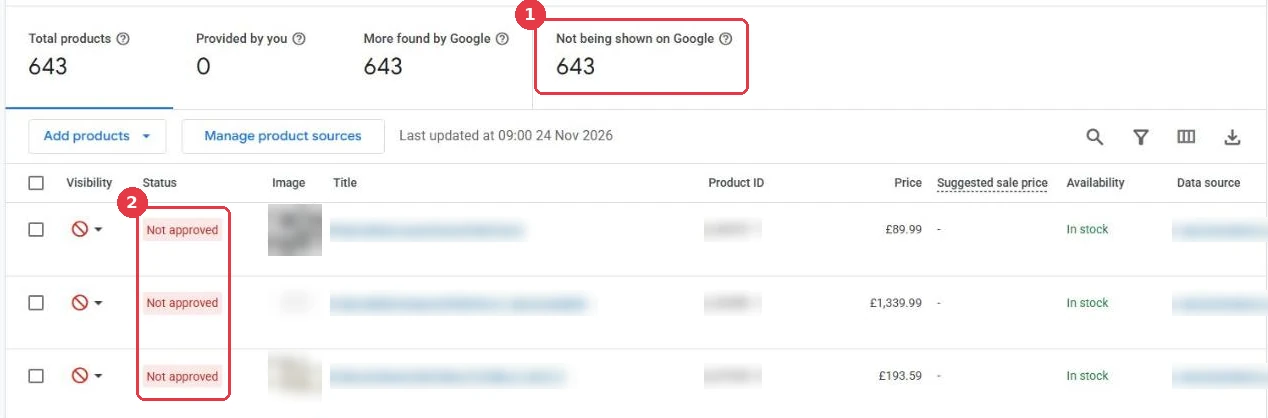
Products page in Merchant Center. (1) All 643 products are not showing on Google. (2) Each product shows “Not approved”.
Step 2: Open the Needs attention tab.
Click Needs attention at the top of the Products page.
Google lists the fixes it wants, in priority order.
Product issues show up here as cards.
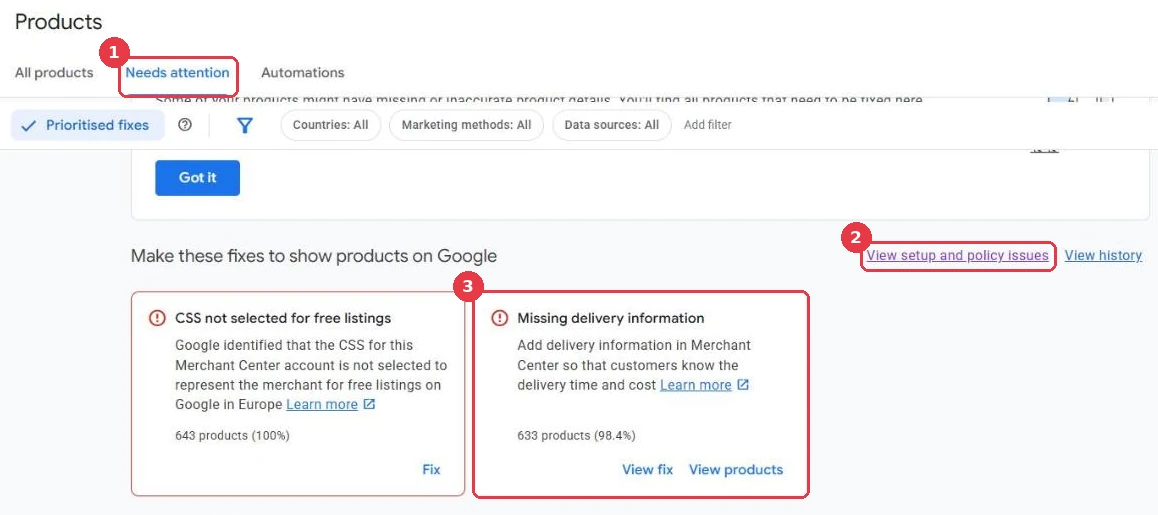
The Needs attention tab. (1) The tab itself. (2) The “View setup and policy issues” link. (3) A product-level issue card, here “Missing delivery information”.
Step 3: Open “View setup and policy issues”.
This page shows problems that affect all products.
A misrepresentation suspension appears here as an account issue.
The Request review button also lives here.
If you are in a cool-down, the end date shows here too.
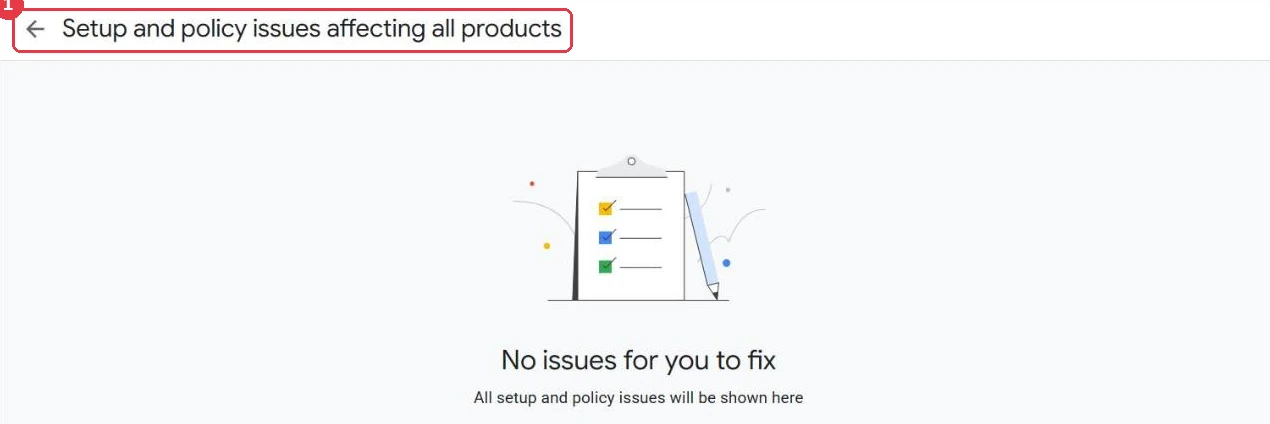
This is where account-level issues like misrepresentation appear. In this account, there are no account issues right now.
Quick tip: product disapprovals and account suspensions are different.
Product issues are fixed product by product.
Misrepresentation is fixed by changing your business and website.
Do not mix the two up.
12 common causes of misrepresentation
Google’s policy page lists the big themes.
In real audits, the cause is usually small and boring.
Here are the ones we check first.
| # | Cause | What it looks like |
|---|---|---|
| 1 | Business details don’t match | Site footer says one address, Merchant Center says another |
| 2 | No real contact details | Only a contact form, no phone, email or address |
| 3 | Missing return policy | No return window, conditions or refund method |
| 4 | Missing delivery policy | No delivery cost or delivery time anywhere |
| 5 | Placeholder text | “Lorem ipsum”, demo products or theme sample pages |
| 6 | Fake urgency | Countdown timers that reset, “only 2 left” on every item |
| 7 | Too-good discounts | 90% off on everything, with no real “before” price |
| 8 | Price mismatch | Feed price differs from landing page price |
| 9 | Broken checkout | Payment fails, or checkout is not on HTTPS |
| 10 | Thin “About us” | No owner, no location, no story |
| 11 | Copied content | Product text copied from big brands or other shops |
| 12 | Unproven claims | “Cures pain”, “#1 in UK” or fake review badges |
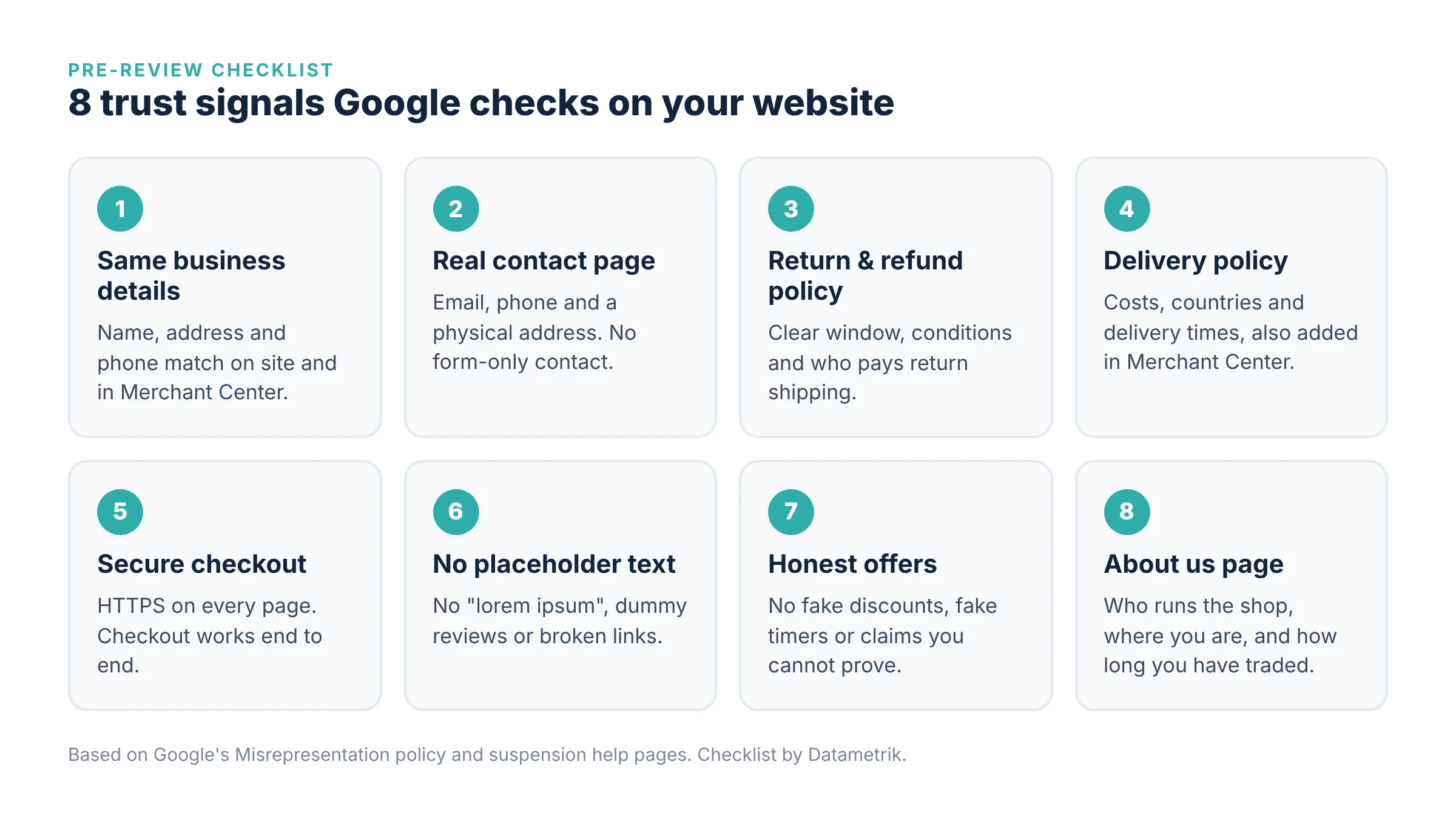
The 8 trust signals we check on every website before requesting a review.
Notice something?
Most causes are on your website, not in Merchant Center.
That is why fixing only Merchant Center settings rarely works.
How to fix a misrepresentation suspension, step by step
Do these steps in order.
Fix the website first.
Then make Merchant Center match the website.
Only then request a review.
Step 1: Match your business details everywhere
Go to Settings → Business info → Details.
Check your business name, address and customer service contact.
Now open your website footer and contact page.
Every detail must match, letter by letter.
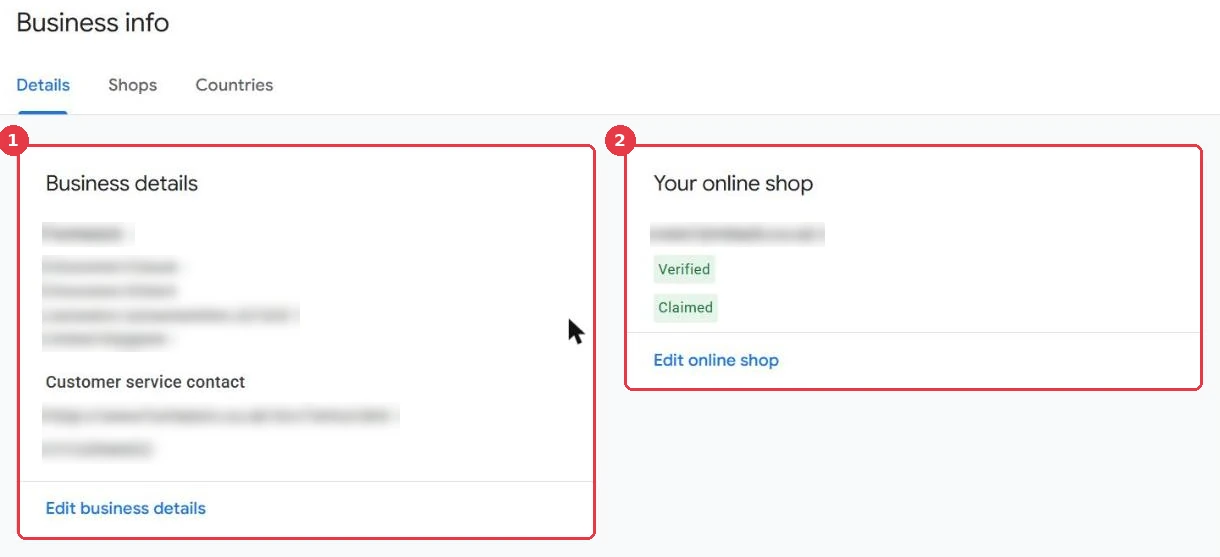
Business info in Merchant Center. (1) Business details must match your website. (2) Your online shop must show Verified and Claimed.
Also check that your website shows Verified and Claimed.
If not, verify it first.
A shop that is not claimed will not pass review.
Common mistake: using a home address in one place and a warehouse in another.
Pick one real address.
Use it everywhere, including Google Business Profile if you have one.
Step 2: Add a delivery policy in Merchant Center
Go to Products and shop → Delivery and returns → Delivery policies.
Add delivery costs, countries and delivery times.
Make sure these match the delivery page on your website.
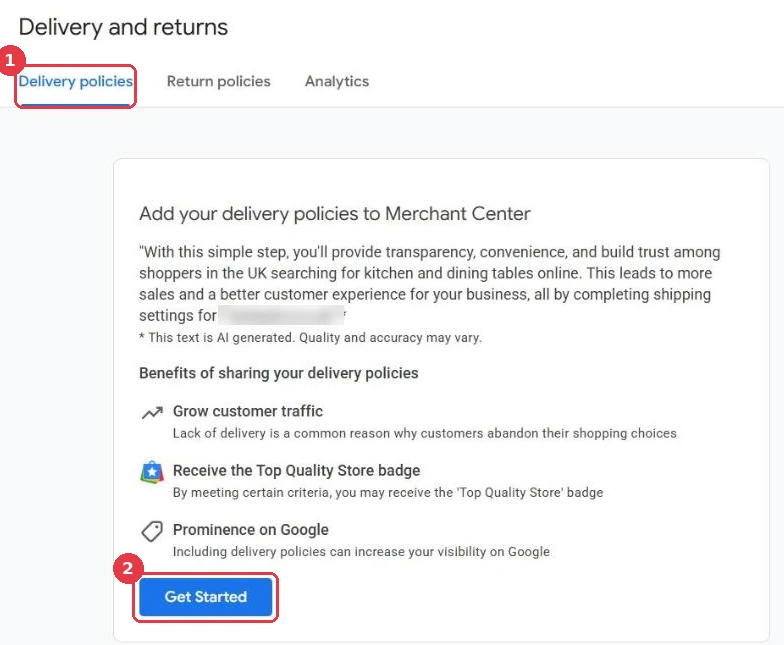
This client account had no delivery policy. (1) The Delivery policies tab. (2) Click Get Started to add one.
In the account above, delivery was missing.
Over 600 products were flagged for “Missing delivery information”.
That alone does not always cause misrepresentation.
But it makes the shop look incomplete to Google.
Step 3: Confirm your return policy
Open the Return policies tab.
Google may detect your policy automatically.
Do not just accept it blindly.
Check the countries, policy URL and return window.
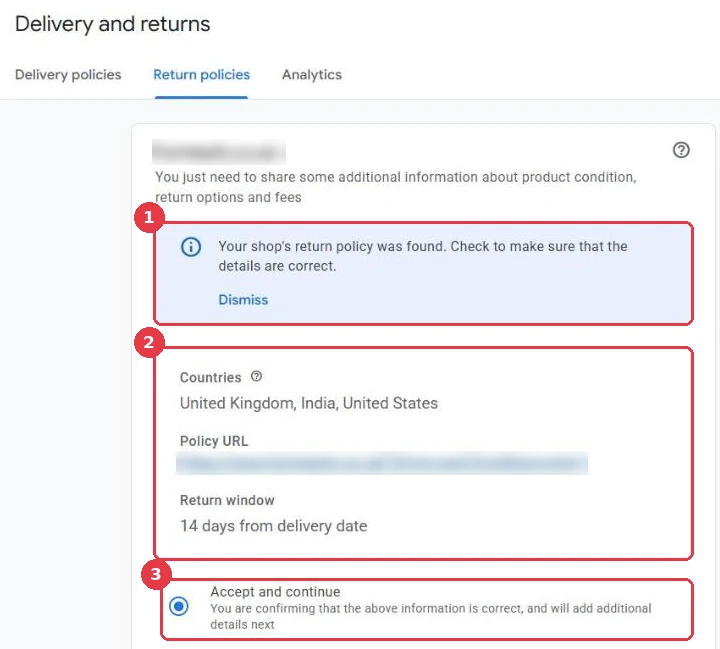
Return policies tab. (1) Google found a policy. (2) Check countries, URL and return window. (3) Accept it, or choose Edit if anything is wrong.
Your website return page should answer four questions:
How many days does the customer have?
What condition must the item be in?
Who pays return shipping?
How and when is the refund paid?
If you do not accept returns, say that clearly.
Silence looks suspicious.
Step 4: Check Shop quality
Go to Products and shop → Shop quality.
If you see “No score”, Google is missing information.
It often points to missing delivery or return policies.
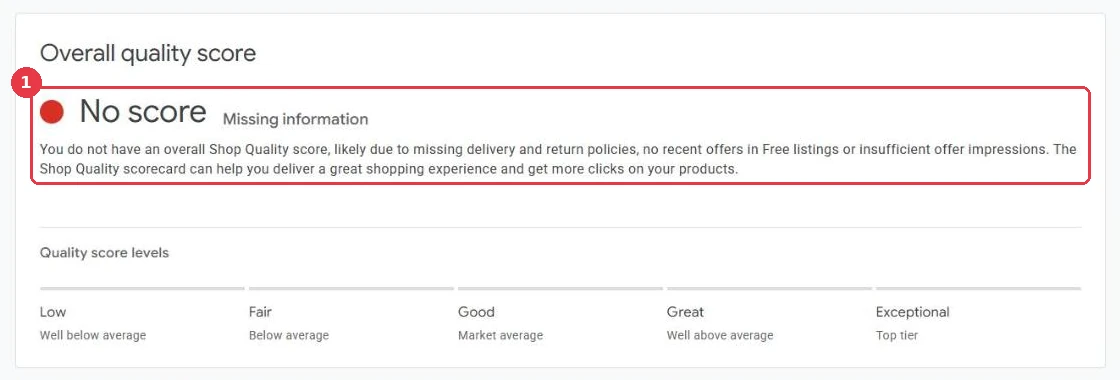
Shop quality page. (1) “No score”, with the reason: missing delivery and return policies.
Step 5: Clean up your website
This step matters most.
Open your site in an incognito window.
Look at it like a nervous first-time buyer.
Fix these items:
- Add a real contact page with phone, email and full address.
- Add an About us page with real people and your location.
- Link policies in the footer: returns, delivery, privacy, terms.
- Delete theme demo pages, sample products and placeholder text.
- Remove fake timers, fake stock counters and fake reviews.
- Show honest “was” prices only if you really sold at that price.
- Make sure checkout works, start to finish, on HTTPS.
- Show accepted payment methods before checkout.
Step 6: Check feed and landing page match
Pick 10 random products.
Compare feed price, stock and title with the product page.
They must match.
A mismatch makes Google doubt every other claim you make.
Step 7: Complete identity verification if asked
Sometimes Google asks for business identity verification.
Use documents that match your Merchant Center details exactly.
Blurry or mismatched documents can delay the review.
How to request a review the right way
You get a limited number of review requests before a cool-down.
So do not request a review after one small change.
Fix everything first, then request once.
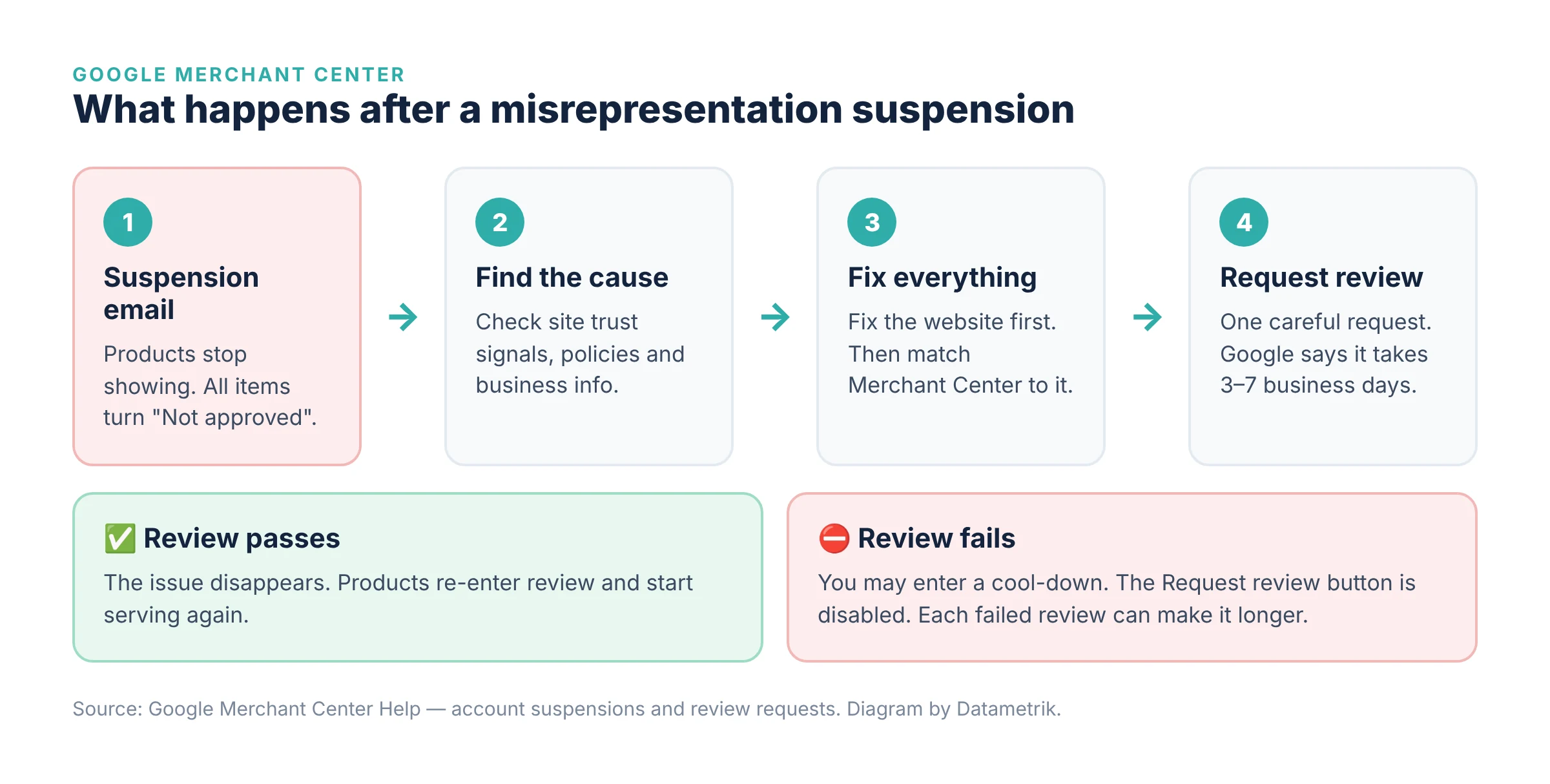
What happens after a suspension, from the email to the review result.
Google gives a few ways to start a review:
- Click Review and fix on the Merchant Center home page.
- Click Fix on the warning banner.
- Click Fix on the issue card in Needs attention.
Then choose to request a review.
Using the Shopify Google & YouTube app?
You can also request it there.
Google says reviews usually take 3 to 7 business days.
You get an email when the review is done.
If it passes, the issue disappears from your account.
What is the cool-down period?
If reviews keep failing, Google starts a cool-down.
During this time, the Request review button is disabled.
Your account stays suspended.
Google says each failed review may make the next cool-down longer.
It does not publish an exact number of days.
You can see your cool-down end date on the setup and policy issues page.
Use the cool-down well.
Fix the website properly.
Ask a friend to test checkout and contact details.
Then request review once the button comes back.
Review request template
Keep your note short and factual.
List what you changed, with page links.
Do not argue or blame Google.
We have reviewed our website against the Misrepresentation policy.
We made the following changes:
1. Matched business name, address and phone on site and in Merchant Center.
2. Added a full contact page: [link].
3. Updated our return and refund policy: [link].
4. Added a delivery policy page and Merchant Center delivery settings: [link].
5. Removed placeholder pages and countdown timers.
6. Checked prices and stock match between feed and website.
Please review our account again.
Thank you.
How to avoid misrepresentation in future
- Audit your site every quarter with the checklist above.
- Update policies whenever your shipping or returns change.
- Never run fake urgency or fake reviews, even for a day.
- Keep feed prices synced with your site, ideally automatically.
- Check Needs attention weekly, before small issues grow.
Running Google Shopping ads?
Read our Google Ads management page.
For Shopify stores, see our Shopify SEO service.
Want to learn Performance Max properly?
Try our Google Ads PMax campaign book.
FAQs
How long does a Merchant Center misrepresentation review take?
Google says review requests usually take 3 to 7 business days.
You get an email when it is complete.
Why was my Merchant Center suspended without a clear reason?
Google often does not share exact details for misrepresentation.
It wants you to review your whole site against the policy.
Start with business details, policies and fake offers.
Can I create a new Merchant Center account instead?
We do not recommend it.
Google may link new accounts to the suspended business.
That can lead to faster suspensions.
Fix the original account instead.
Does misrepresentation affect Google Ads too?
It stops Shopping ads and free listings from that Merchant Center.
Search ads in Google Ads can still run unless Google Ads is also suspended.
How many times can I request a review?
Google does not publish a fixed number.
After some failed reviews, a cool-down period starts.
So fix everything before you request.
Do I need a physical address on my website?
Yes, in most cases.
Google wants clear contact information, including a physical address.
It should match your Merchant Center business details.
Sources:
- Google Merchant Center Help: Misrepresentation policy
- Google Merchant Center Help: Account warnings and suspensions
- Google Merchant Center Help: Request a review of your issues
- Search Engine Land: How to fix a suspended Merchant Center account
Related reading:
Stuck in a suspension loop?
Our Merchant Center fix team can audit your account and website.
Keep an eye on disapprovals. Drop Detective flags disapproved ads and sudden drops in your Google Ads account every morning: see how Drop Detective works →
Written By
Chetna leads content creation at Datametrik, turning complex programmatic workflows, ad operations, paid media strategies, and SEO frameworks into practical, step-by-step guides.
Technically Reviewed & Verified By
Every Datametrik guide is audited for live platform accuracy, bidding mechanics, and tracking setup by our technical editors with programmatic media buying and Ad Ops experience across WPP, Cognizant, and Dentsu.

Comments are closed.