GA4 audiences are groups of users who did something on your website or app.
For example, people who added to cart but did not buy.
GA4 keeps each audience updated as people enter and leave it.
You can use audiences in GA4 reports and in Google Ads campaigns.
There are 5 types: predefined, suggested, template, predictive and custom.
Last updated: November 19, 2026. All screenshots are from our own GA4 property (datametrik.com).
Most people create a GA4 property and never open the Audiences page.
That is a big miss.
Audiences are the bridge between your analytics data and your ad campaigns.
They help you show the right ad to the right person at the right time.
In this guide, we explain GA4 audiences in very simple words.
We use real screenshots from the GA4 account that runs this website.
By the end, you will know how to create and use audiences in ads.
Table of contents:
- What are GA4 audiences?
- GA4 audiences vs segments
- Where to find audiences in GA4
- 5 types of GA4 audiences
- How to create a custom audience (step by step)
- 12 must-track GA4 audiences
- Settings to turn on before using audiences in ads
- How to use GA4 audiences in paid campaigns
- How to compare audiences in GA4 reports
- Troubleshooting: GA4 audiences not working
- GA4 audience best practices
- Frequently asked questions
What Are GA4 Audiences?
A GA4 audience is a group of users who match rules you set.
The rules can be based on events, pages, devices, location or traffic source.
For example: “people who started checkout but did not buy”.
GA4 checks your data all the time.
When a user matches your rules, GA4 adds them to the audience.
When they stop matching, GA4 can remove them.
You can use audiences in two main ways:
- For analysis: compare how different user groups behave in your reports.
- For advertising: send audiences to Google Ads for remarketing and exclusions.
GA4 Audiences vs Segments: What Is the Difference?
Many beginners mix up audiences and segments.
They look similar, but they do different jobs.
| Feature | Audiences | Segments |
|---|---|---|
| Main use | Remarketing and report comparisons | Deep analysis in Explorations |
| Works on past data? | Mostly from the time you create it | Yes, on all available past data |
| Can be sent to Google Ads? | Yes | No |
| Has membership duration? | Yes, up to 540 days | No |
| Where you create it | Admin → Audiences | Inside an Exploration |
Simple rule:
Use segments to study your data.
Use audiences to act on your data.
Where to Find Audiences in GA4
Audiences live in the Admin area, not in the reports.
Follow this path:
Admin (gear icon) → Data display → Audiences
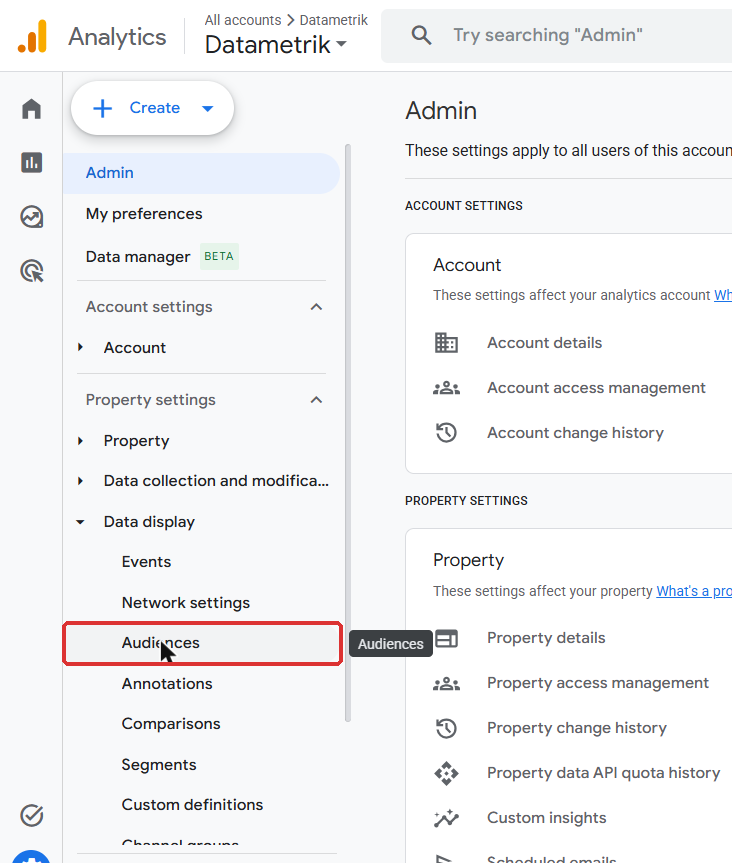
Path to Audiences in GA4: Admin → Data display → Audiences.
Here is what the Audiences page looks like in our account.
You can see our custom audiences, their user counts and creation dates.
Notice our naming style: brand – who they are – duration.
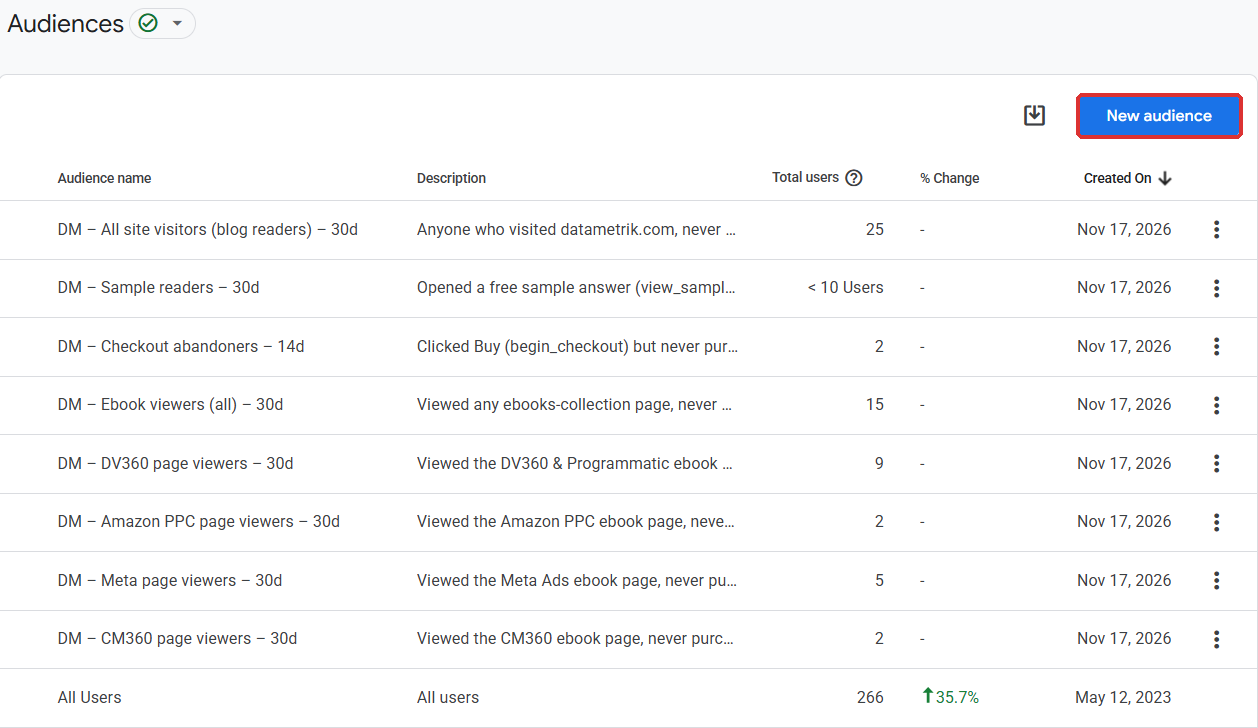
Our GA4 Audiences page with real custom audiences.
To create a new one, click the blue New audience button.
You need the Marketer role or higher to create audiences.
5 Types of GA4 Audiences
When you click “New audience”, GA4 shows you several options.
Let’s look at each type in simple words.
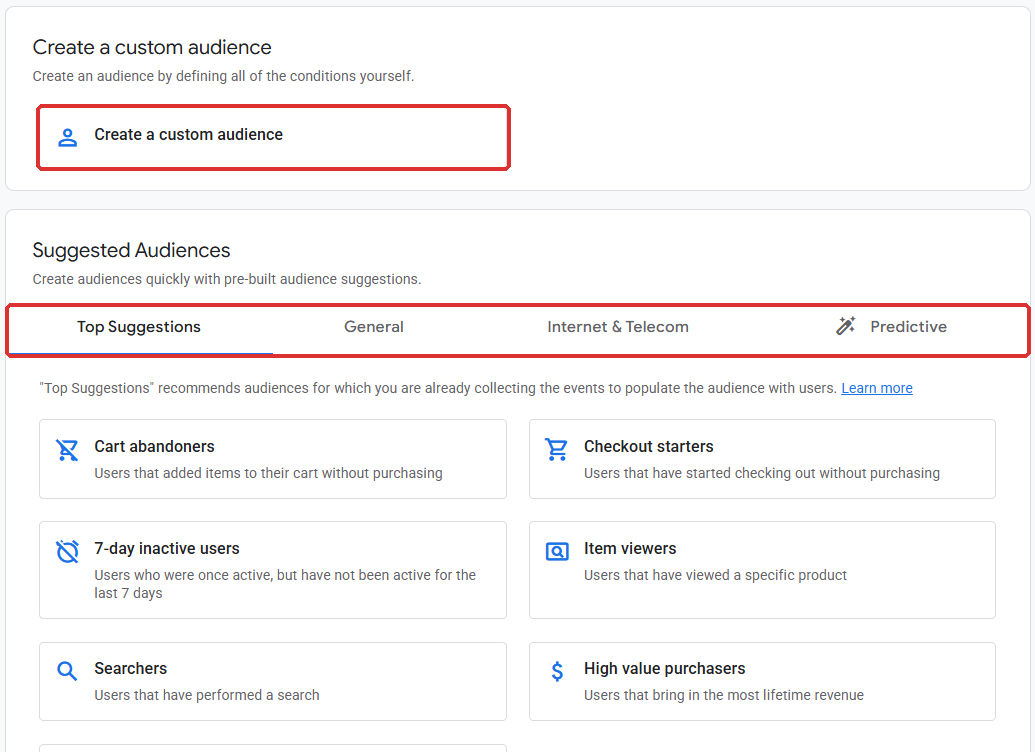
The “Build new audience” screen: custom, suggested and predictive options.
1. Predefined audiences
Every GA4 property comes with ready-made audiences.
The most common one is “All Users”.
If you track purchases, you may also see “Purchasers”.
You cannot edit these, but you can use them in reports.
2. Suggested audiences
GA4 suggests audiences based on the events you already collect.
They sit in tabs like Top Suggestions, General and your industry.
Examples include:
- Cart abandoners: added to cart but did not buy.
- Checkout starters: started checkout but did not buy.
- 7-day inactive users: were active before, but not in the last 7 days.
- Item viewers: viewed a product.
- Searchers: used your site search.
- High value purchasers: bring the most lifetime revenue.
Suggested audiences are the fastest way to start.
Click one, check the rules, and save it.
3. Audience templates
Templates give you a head start.
You pick a template and fill in the values.
GA4 has three templates:
- Demographics: age, gender, language or location.
- Technology: device, browser, operating system or platform.
- Acquisition: how users first came to your site, like source or medium.
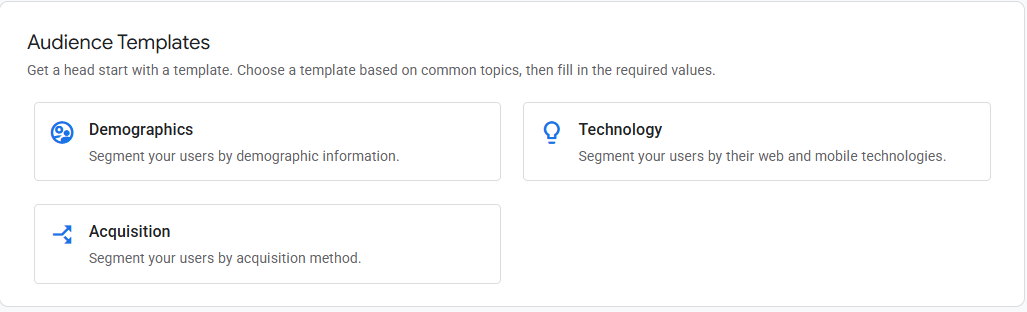
GA4 audience templates: Demographics, Technology and Acquisition.
4. Predictive audiences
Predictive audiences use Google’s machine learning.
They guess what users will do next.
GA4 offers five predictive templates:
| Predictive audience | Who is in it |
|---|---|
| Likely 7-day purchasers | Users likely to buy in the next 7 days |
| Likely first-time 7-day purchasers | Users likely to make their first purchase in 7 days |
| Predicted 28-day top spenders | Users likely to spend the most in 28 days |
| Likely 7-day churning users | Active users likely to not come back in 7 days |
| Likely 7-day churning purchasers | Buyers likely to not come back in 7 days |
There is a catch.
Predictive audiences only work if your property meets Google’s data rules.
You need at least 1,000 returning users who bought, and 1,000 who did not.
This must happen over a 7-day period within the last 28 days.
You must also send the purchase event with value and currency.
Real example:
Our datametrik.com property does not have enough purchases yet.
So all five predictive audiences show “Not eligible to use”.
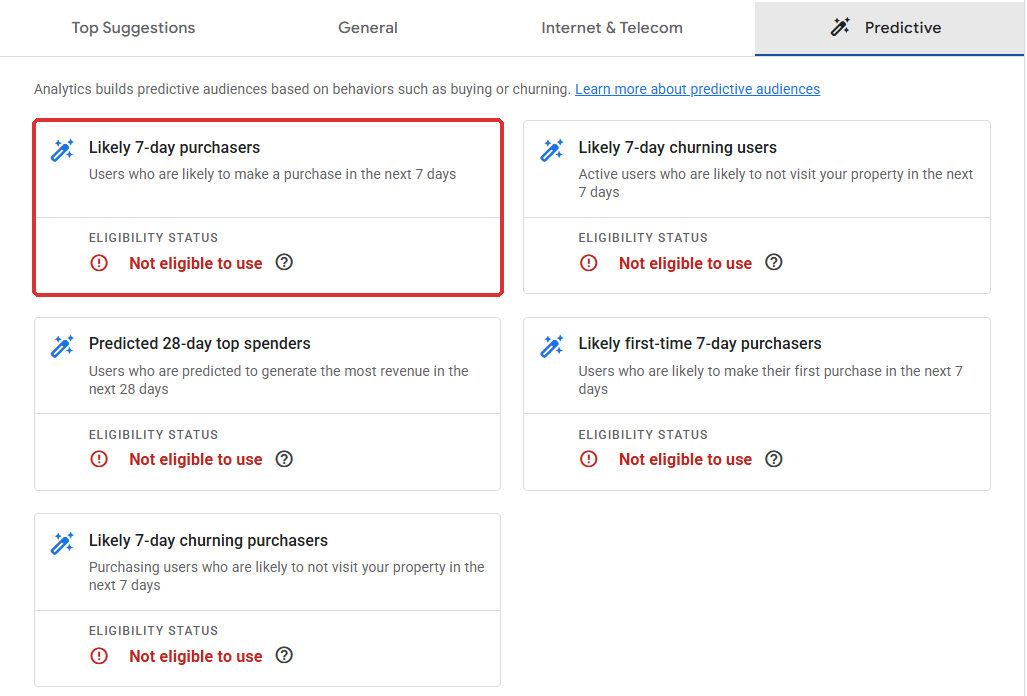
Predictive audiences in our property show “Not eligible to use”.
Read Google’s guide on predictive metrics for the full rules.
5. Custom audiences
Custom audiences give you full control.
You decide every rule yourself.
This is the type most advertisers use most often.
The next section shows how to build one.
How to Create a Custom Audience in GA4 (Step by Step)
Let’s use a real audience from our account as an example.
It is called “DM – Checkout abandoners – 14d”.
It holds people who clicked Buy but never purchased.
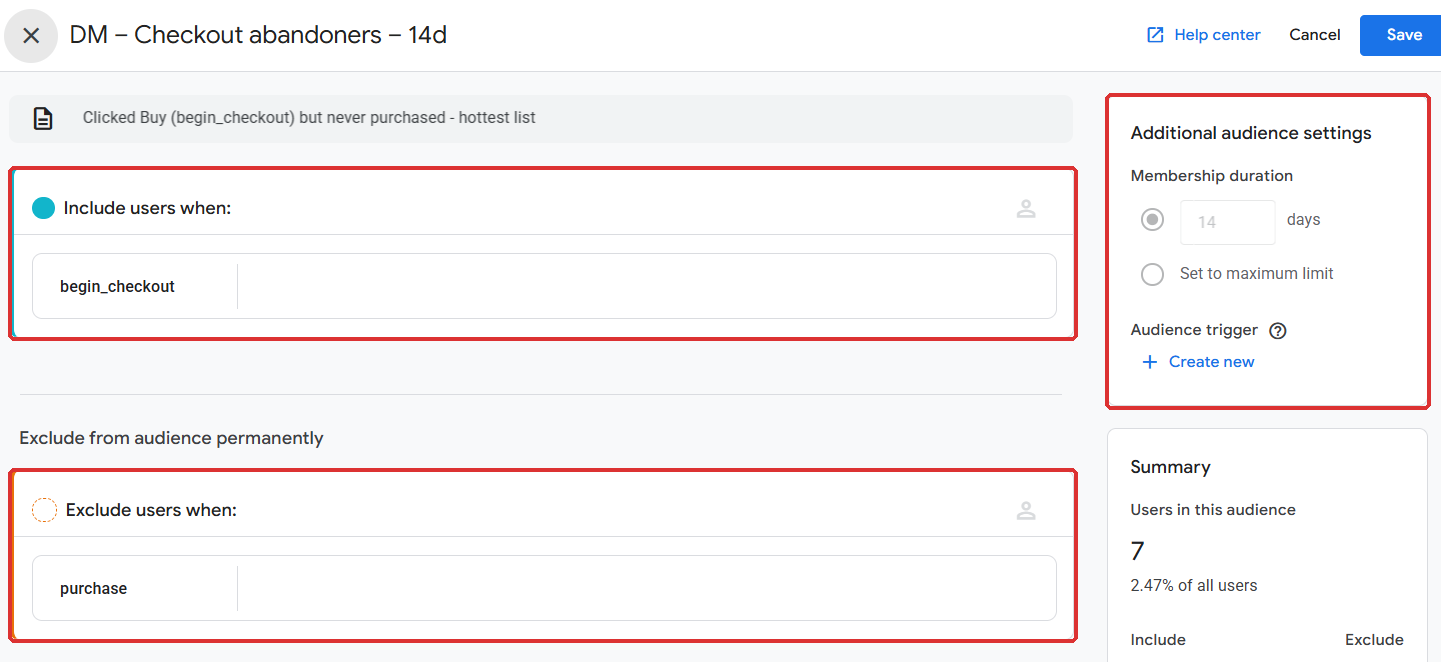
A real custom audience: include begin_checkout, exclude purchase, 14-day duration.
Step 1: Open the builder.
Go to Admin → Audiences → New audience → Create a custom audience.
Step 2: Name your audience.
Use a clear name, like “Checkout abandoners – 14d”.
Add a short description so your team knows what it is.
Step 3: Add “Include users when” conditions.
Click “Add new condition” and pick an event or dimension.
In our example, we picked the begin_checkout event.
Step 4: Choose the condition scope.
Scope means where GA4 looks for the match.
- Across all sessions: the user did it at any time.
- Within the same session: the user did it in one visit.
- Within the same event: all rules must match one single event.
Step 5: Add a sequence (optional).
A sequence means steps in a set order.
For example: viewed pricing page, then started a form.
“Indirectly followed by” means any time after.
“Directly followed by” means right after.
Step 6: Add an exclusion.
Exclusions remove people you do not want.
In our example, we exclude anyone who fired the purchase event.
- Temporarily exclude: removes users only while they match the rule.
- Permanently exclude: removes users who ever matched the rule.
Step 7: Set the membership duration.
This is how long a user stays in the audience.
The maximum is 540 days.
We used 14 days, because checkout intent fades fast.
Step 8: Add an audience trigger (optional).
An audience trigger fires a new event when someone joins the audience.
You can mark that event as a key event or use it in reports.
Step 9: Check the summary and save.
The right panel shows an estimated audience size.
Click Save.
New audiences can take 24 to 48 hours to fill with users.
A standard GA4 property can have up to 100 audiences.
GA4 360 properties can have up to 400.
You can use up to 10 conditions in one audience.
To edit, copy or archive an audience, click the three dots next to it.
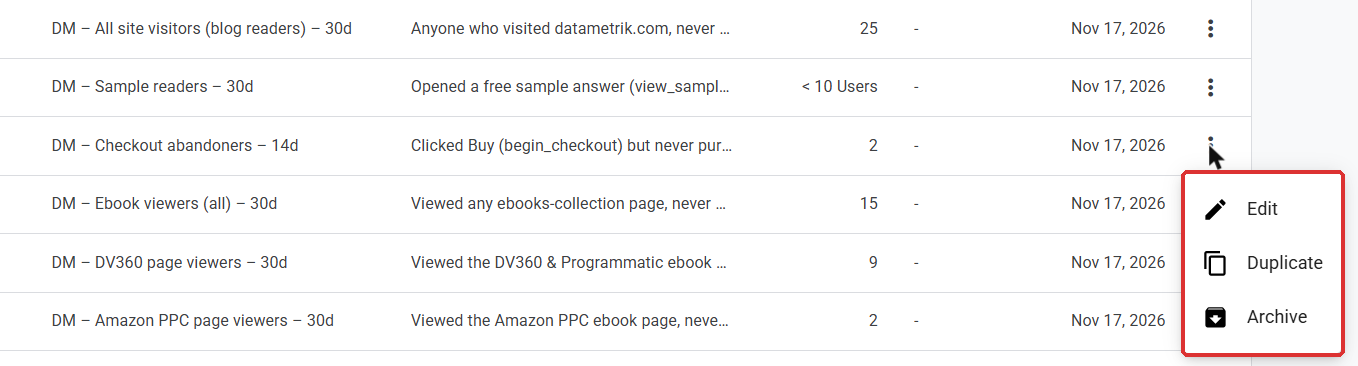
Click the three dots to edit, duplicate or archive an audience.
12 Must-Track GA4 Audiences
You do not need 100 audiences.
These 12 cover most websites, from online stores to lead-gen businesses.
Pick the ones that match your goals.
| # | Audience | Simple rule | Duration | Best use |
|---|---|---|---|---|
| 1 | All website visitors | Any page_view | 30–540 days | Broad remarketing |
| 2 | Engaged visitors | Session engaged = 1, or 2+ page views | 30 days | Better-quality remarketing |
| 3 | Product or service page viewers | Page path contains /product/ or /services/, no conversion | 30 days | Show the exact offer again |
| 4 | Pricing page viewers | Page path contains /pricing/, no conversion | 14–30 days | High-intent remarketing |
| 5 | Cart abandoners | add_to_cart, exclude purchase | 7–14 days | Discount or reminder ads |
| 6 | Checkout abandoners | begin_checkout, exclude purchase | 7–14 days | Your hottest remarketing list |
| 7 | Form starters, not submitted | Form start event, exclude generate_lead | 14 days | Lead-gen remarketing |
| 8 | All purchasers | purchase | 540 days | Exclude from new-customer campaigns |
| 9 | All leads | generate_lead | 540 days | Exclude from lead campaigns |
| 10 | Repeat or high-value buyers | 2+ purchases, or high lifetime value | 540 days | Upsell and loyalty offers |
| 11 | Lapsed customers | Purchased before, not active in 60+ days | 60–90 days | Win-back campaigns |
| 12 | Blog readers | Page path contains /blog/ or /category/ | 30–90 days | Top-of-funnel nurture ads |
Tip: Your converter audiences (#8 and #9) are as important as remarketing lists.
They stop you wasting money on people who already bought.
Read our guide on GA4 high-value audiences in Google Ads for more ideas.
Settings to Turn On Before Using Audiences in Ads
Your audiences will not reach Google Ads unless these settings are right.
Check each one before you build campaigns.
1. Turn on Google signals.
Go to Admin → Data collection and modification → Data collection.
Turn on “Google signals data collection”.
Google says Google signals is required for web remarketing.
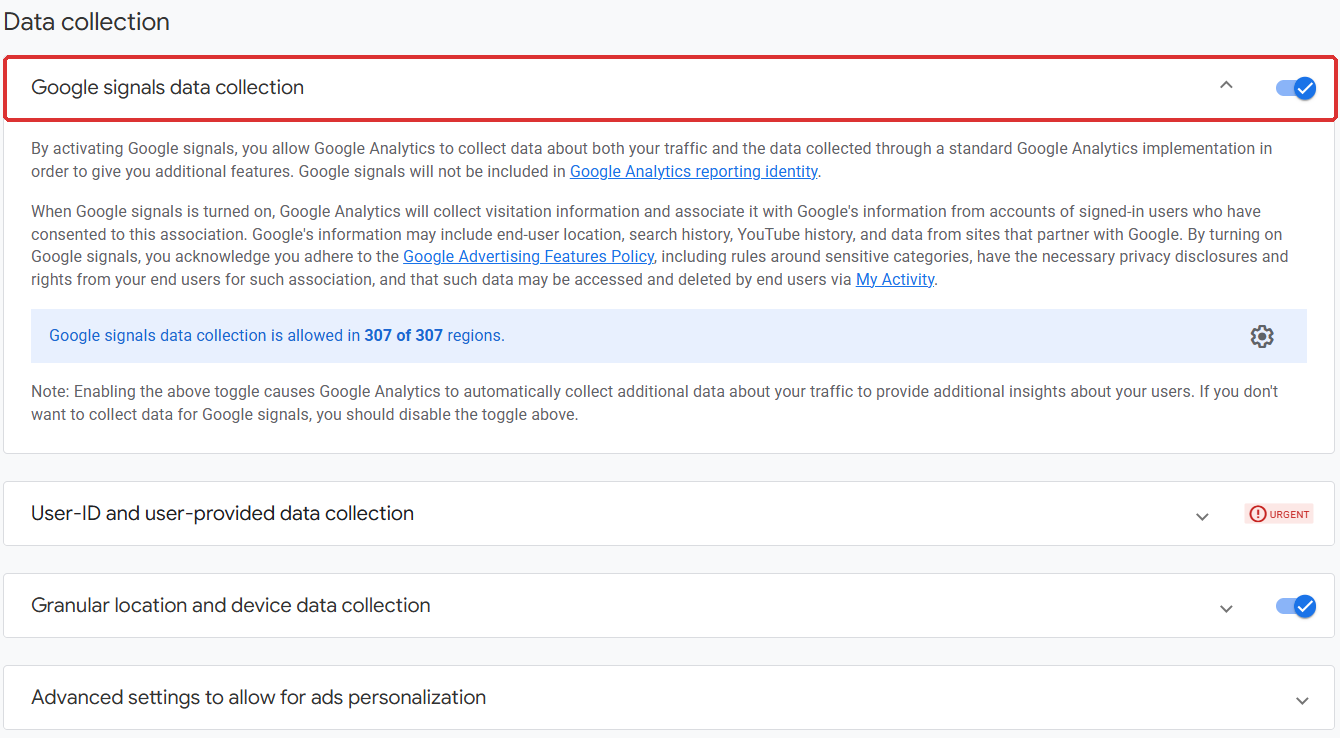
Turn on Google signals in Admin → Data collection.
2. Allow ads personalization in your regions.
On the same page, open “Advanced settings to allow for ads personalization”.
Make sure it is allowed in the countries where you advertise.
Users in blocked regions are not added to remarketing lists.
3. Link Google Ads with personalized advertising enabled.
Go to Admin → Product links → Google Ads links.
Link your Google Ads account.
Make sure “Personalized Advertising” shows “Enabled”.
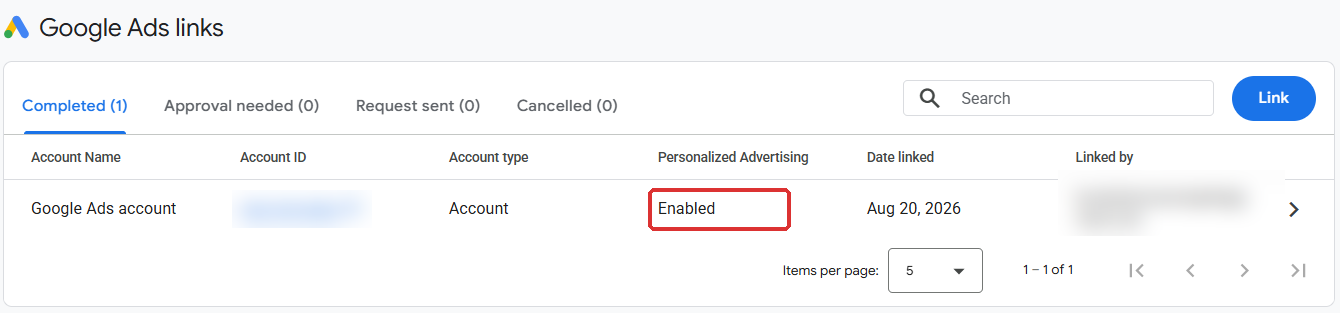
Google Ads link with “Personalized Advertising” enabled.
4. Set up Consent Mode correctly.
If you use a cookie banner, use Consent Mode v2.
Users must grant ad_user_data and ad_personalization to be used in ads.
Without this, your lists in Google Ads will be much smaller.
5. Track the right events.
Make sure key events like purchase or generate_lead fire correctly.
For ecommerce, send value and currency with every purchase.
Need help? See our GA4 setup service or GTM setup service.
How to Use GA4 Audiences in Paid Campaigns
Once GA4 is linked, your audiences flow into Google Ads on their own.
In Google Ads, find them under Tools → Shared library → Audience manager.
Here is how to use them in each campaign type.
| Campaign type | How to use GA4 audiences |
|---|---|
| Search | Add audiences in “Observation” mode first. Then raise bids for groups that convert better. |
| Performance Max | Add your best audiences as an audience signal. This guides Google’s AI at the start. |
| Display and Demand Gen | Target cart and checkout abandoners with reminder ads. |
| YouTube | Show a short video to engaged visitors who did not convert. |
| All campaigns | Exclude purchasers or leads, so you only pay for new customers. |
| Display & Video 360 | If your GA4 is linked to DV360, use the same audiences for programmatic remarketing. |
How big must an audience be?
Since December 2025, Google Ads needs at least 100 active users in 30 days.
This now applies to Search, Display and YouTube.
Before this change, Search and YouTube needed 1,000 users.
See Google’s page on data segment size rules.
Do audiences include past visitors?
Partly.
When you create an audience, GA4 can add matching users from the last 30 days.
So your list does not always start from zero.
Our trader tips for paid campaigns:
- Start Search campaigns with audiences on “Observation”, not “Targeting”.
- Keep your hottest lists short, like 7 to 14 days.
- Always exclude recent buyers from prospecting campaigns.
- Use different ad copy for cart abandoners and blog readers.
- Check list sizes in Google Ads, not only in GA4.
How to Compare Audiences in GA4 Reports
Audiences are not only for ads.
You can also use them to compare user groups in your reports.
Option 1: Use the Audiences report.
Go to Reports → User → User attributes → Audiences.
Here you see users, sessions and revenue for each audience.
If you do not see it, an admin can add it to your reports.
Option 2: Use a comparison.
Open any standard report.
Click “Add comparison” at the top.
Choose the dimension “Audience name” and pick your audience.
Now you can see how that group performs next to all users.
Troubleshooting: GA4 Audiences Not Working
Here are the most common problems we see, and how to fix them.
Problem 1: My new audience shows 0 users.
- Wait 24 to 48 hours. New audiences fill slowly.
- Check the event name spelling. GA4 is case-sensitive.
- Test the event in DebugView to make sure it fires.
- Check the scope. “Within the same event” is very strict.
Problem 2: My GA4 audience does not show in Google Ads.
- Check that GA4 is linked to Google Ads.
- Check that personalized advertising is enabled on the link.
- Turn on Google signals.
- Make sure the audience does not use data excluded from ads personalization.
- Give it a few days after linking or creating the audience.
Problem 3: The list is much smaller in Google Ads than in GA4.
This is normal.
Google Ads can only use people it can match and who allowed ads tracking.
Consent choices and blocked regions also reduce the number.
Problem 4: Google Ads says the list is too small to serve.
- You need at least 100 active users in the last 30 days.
- Make the membership duration longer.
- Use broader rules, like a whole folder instead of one page.
- Combine similar small audiences into one.
Problem 5: Predictive audiences say “Not eligible to use”.
Your property needs more purchase or churn data.
You need 1,000 returning users who did, and 1,000 who did not.
Until then, use custom audiences like cart and checkout abandoners.
Problem 6: I cannot create more audiences.
You have hit the limit of 100 audiences.
Archive old or unused audiences to make room.
Problem 7: GA4 says the audience is too complex.
Very complex audiences can hit a storage limit.
Remove some old complex audiences, or simplify your rules.
For more fixes, see Google’s guide on audiences not populating in Google Ads.
GA4 Audience Best Practices
- Use a clear naming style. We use “DM – who – duration”, like “DM – Checkout abandoners – 14d”.
- Always write a description. Your future self and your team will thank you.
- Match duration to your buying cycle. Short cycle, short duration. Long cycle, long duration.
- Build exclusion lists first. Purchasers and leads save the most ad budget.
- Start broad, then narrow. Tiny audiences cannot serve ads.
- One audience, one intent. Do not mix blog readers with checkout abandoners.
- Create audiences early. They mostly collect users from the day you create them.
- Never use personal data. Do not put emails or phone numbers in audience rules.
- Review every month. Archive audiences you no longer use.
- Check sizes in Google Ads too. The GA4 number is not the number you can target.
Frequently Asked Questions
- What are GA4 audiences?
GA4 audiences are groups of users who match rules you set.
You can use them in reports and in Google Ads. - How many audiences can I create in GA4?
A standard GA4 property can have up to 100 audiences.
A GA4 360 property can have up to 400. - How long does a GA4 audience take to fill?
New audiences usually take 24 to 48 hours to collect users. - What is the maximum membership duration in GA4?
The maximum membership duration is 540 days. - What is the difference between GA4 audiences and segments?
Segments are for analysis in Explorations and work on past data.
Audiences are for remarketing and reports, and can go to Google Ads. - What is the minimum audience size for Google Ads?
Google Ads needs at least 100 active users in the last 30 days.
This applies to Search, Display and YouTube. - Why are my GA4 predictive audiences not eligible?
Your property needs 1,000 returning users who did the action, and 1,000 who did not.
This must happen over 7 days within the last 28 days. - Why is my GA4 audience not showing in Google Ads?
Check the Google Ads link, personalized advertising and Google signals.
Then wait a few days, as lists take time to fill.
Related reading:
- Track GA4 high-value audiences in Google Ads
- First user DV360 campaign name in GA4
- DV360 optimization strategies and tips
Need help setting up GA4 audiences for your ads?
Contact our team and we will help you.
Using GA4 audiences in Google Ads? Our Google Ads scripts catch drops, learning mode and wasted spend automatically: browse our Google Ads scripts →
Written By
Chetna leads content creation at Datametrik, turning complex programmatic workflows, ad operations, paid media strategies, and SEO frameworks into practical, step-by-step guides.
Technically Reviewed & Verified By
Every Datametrik guide is audited for live platform accuracy, bidding mechanics, and tracking setup by our technical editors with programmatic media buying and Ad Ops experience across WPP, Cognizant, and Dentsu.

Comments are closed.